
Using Stockrooms
- recycledbrick
- Apr 27, 2025
- 1 min read
When I part out new sets, anything that isn’t in my inventory goes into a Stockroom so I can give it a location. The same when I manually add pieces. You can have three stockrooms. A,B and C. When you go to your inventory you will see a screen below. You can sort By Category, By Color and so on. Right now I have it sorted By Availability so I can see the Stockrooms.

Right now I have 284 pieces in 39 lots in Stockroom A. The Available is what is available in your store right now. The Stockroom items aren’t available for purchase yet. Here is a couple of the pieces in Stockroom A.

Here is where I add the location info for the pieces into the My Remarks field. I can update that here and deselect the Stockroom A box. Clicking submit on the bottom releases the pieces into my store.
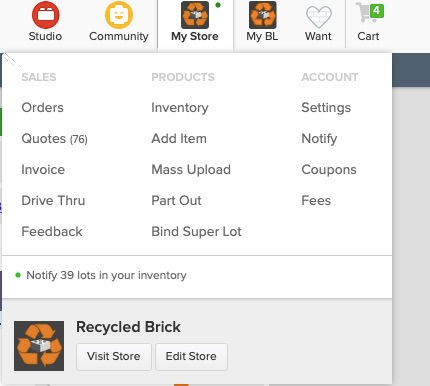
When you hover over your My Store tab you will see that there is a notice about notifying about the lots you added to your store. Whenever someone saves a piece to their Wanted List they can get a notification about the piece being available in your store. Clicking on it will take you to a new page to send out the notifications.
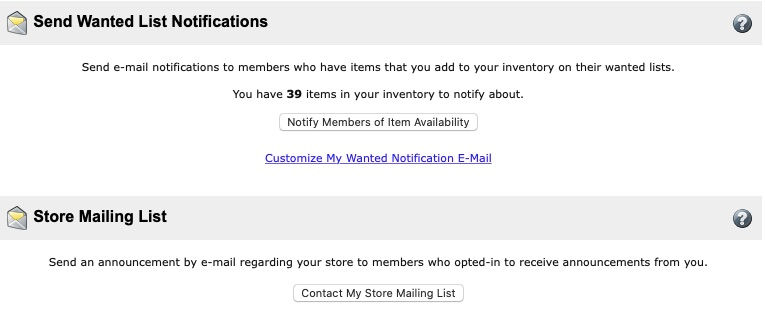
These sometimes will bring in a sale. Just because it shows a piece is on a wanted list not everyone will get a notification about that piece. I have hundreds of pieces on wanted lists but I have the notifications turned off.


Comments