
Adding Pieces To Your Store: Brickstore
I showed the ways to add pieces to your store using what Bricklink gives us. It is slow and time consuming to add lots of pieces this way. There is a third party software called BrickStore which is much faster. It is available on this website: BrickStore. You can follow the installation instructions on GitHub. I get no compensation for featuring this but it is the way to add pieces.

Open BrickStore and this is the main screen. The very first thing that you need to do is log into Bricklink otherwise you can’t add or edit anything in your store. Under the BrickStore tab at the top of your screen go to Preference and then Bricklink .

The login process has changed so now you must get an Access Token from the Bricklink tab in Settings. It will take you to a Bricklink page where you can copy it back to here. It expires every 30 days and don't share it with anyone. If there is a problem uploading or downloading from your store, this is probably where the problem is. Close off the settings and back to the main screen, first image. Select New and a new screen appears.

To do anything on this screen, click on the brick with the green plus sign and another new screen appears.

On the left is all the BL categories. In the middle are all the pictures in the category and on the right are the colors that it is available in if Known Colors is selected. I selected a 2×4 Brick 3001 in orange. In the bottom right you can add your quantity, condition, your locations in the Remarks field and pricing. It is probably easier to leave the pricing blank and just enter your qty, condition and locations and then click add.

I added the same piece in different colors and quantities. Everything that you added will be on this screen. If you notice, the price field is red. Instead of adding the price individually we can mass update of you Select All and Copy.

If you click on the $ with the Bricklink Head it will give you pricing options. I am choosing Current Inventory Average and click OK. The prices will now be filled in. If you are done you can now upload your new inventory to your store. Under File there is the option to upload.

Select the second option Mass Upload to Clipboard. Once selected it will open a new tab in your browser to your Bricklink store
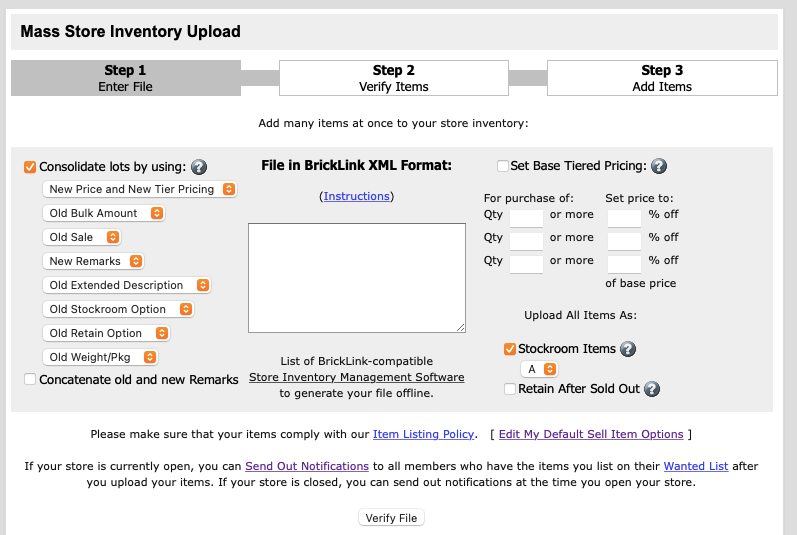
Selecting the Export it will have put everything you added into the clipboard. Click in the big empty rectangle and paste it in.

Once pasted, then click Verify File.

You can check to see if everything looks good and then click Verify. Now the pieces are in your store whether availble to be bought or in a Stockroom. This is the easiest way to upload pieces to your store.


Comments